> ## Documentation Index
> Fetch the complete documentation index at: https://suibyexamples.com/llms.txt
> Use this file to discover all available pages before exploring further.
# Advanced Sui TypeScript SDK
> Advanced techniques and patterns for Sui TypeScript SDK development
You’re most likely building the frontend for your Sui, and you want to improve efficiency as you do so, so this article is for you.
Here, you’ll learn production-centric operations to ship frontends and backends that interact with the Sui blockchain.
## Getting Started with Sui & TypeScript
This is not the first or introductory piece I’m working on for Sui and TypeScript. If you need to get some basics to get more comfortable, please check out [this introductory article](https://dev.to/goodylili/how-to-use-the-sui-typescript-sdk-2dep) on the Sui TypeScript SDK.
Install the Sui TypeScript SDK in your project with this command:
```bash [Terminal] theme={null}
npm i @mysten/sui.js
```
Now that you’re good to go, let’s start with programmable transactions, one of Sui's special features.
## Programmable Transactions Blocks
Programmable transaction blocks (PTB) allow you to combine multiple transactions into one block and execute them.
Add these imports to your projects, let us send a programmable transaction.
```tsx [index.ts] theme={null}
import { Transaction } from '@mysten/sui/transactions';
import { Ed25519Keypair } from '@mysten/sui/keypairs/ed25519';
import { SuiClient, getFullnodeUrl } from '@mysten/sui/client';
```
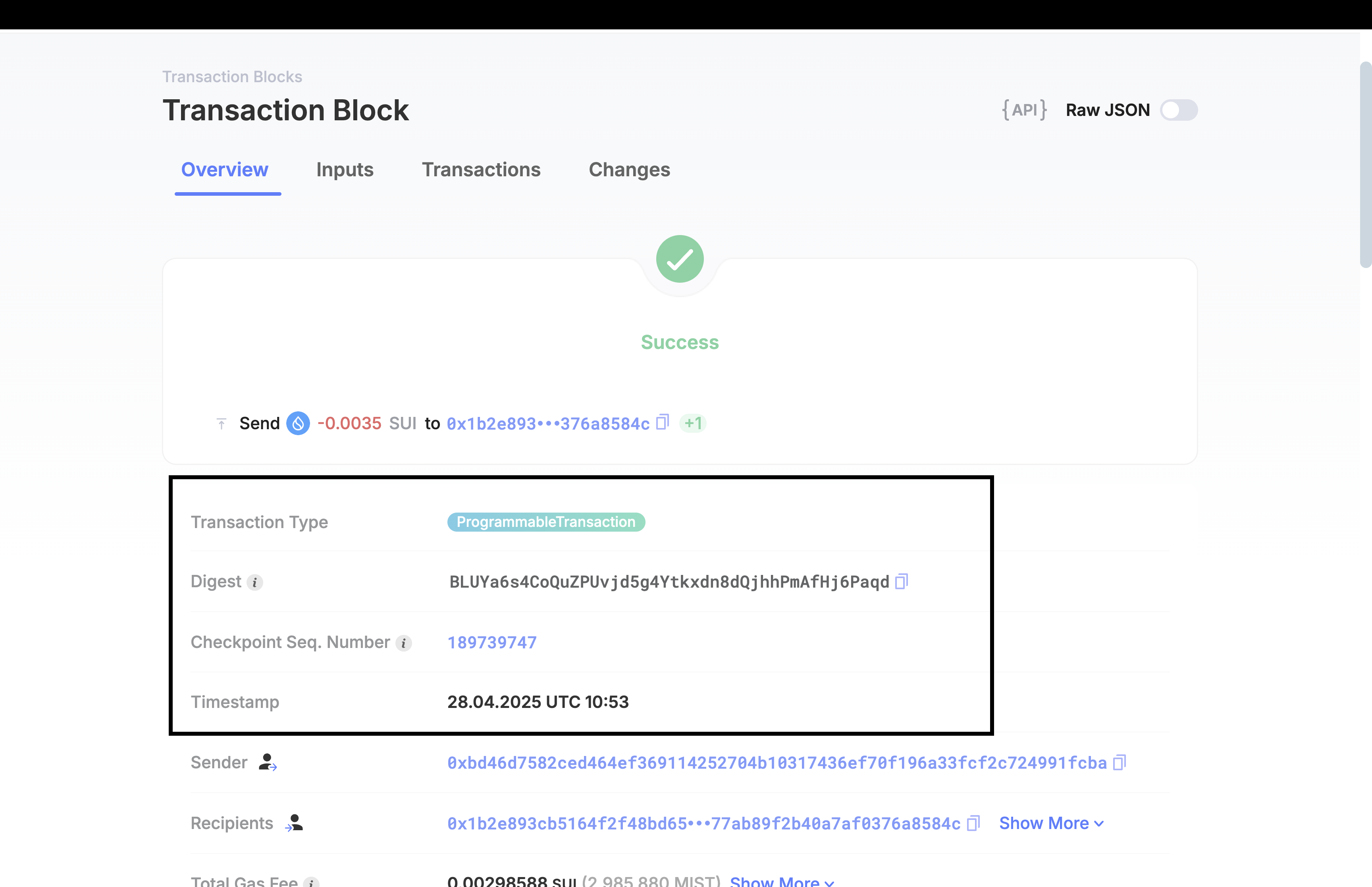
In this programmable transaction, I want to split a coin and send them to multiple recipients all in one transaction.
First, I’ll have to create the transaction keypair and define a new transaction instance for the programmable transaction.
```tsx [index.ts] theme={null}
async function main() {
// Initialize client
const client = new SuiClient({ url: getFullnodeUrl('testnet') });
// Create a keypair from your secret
const keypair = Ed25519Keypair.fromSecretKey(
'suiprivkey1qq9r6rkysny207t5vr7m5025swh7w0wzra9p0553paprhn8zshqsx2rz64r'
);
// Create a single new programmable transaction
const tx = new Transaction();
// Define multiple transfers and the amounts
const transfers = [
{ to: '0x83ecd81fdd132d4fb4f9ae2608656b000df13c4c3c5b10490d48ee981bc8f433', amount: 500000 },
{ to: '0x1b2e893cb5164f2f48bd65f77ea76c14d025d8577ab89f2b40a7af0376a8584c', amount: 50000 },
];
```
Now, we need to split the gas coin int multiple amounts for transfer with the `splitCoins` function like this.
```tsx [index.ts] theme={null}
// Split gas coin into exact amounts for transfers
const coins = tx.splitCoins(
tx.gas,
transfers.map((transfer) => transfer.amount)
);
// Transfer each split coin to its corresponding address
transfers.forEach((transfer, index) => {
tx.transferObjects([coins[index]], transfer.to);
});
// Sign and execute the entire programmable transaction
const result = await client.signAndExecuteTransaction({
signer: keypair,
transaction: tx,
});
console.log('Transaction executed successfully.');
console.log('Execution result:', result);
}
main().catch(console.error);
```
The `transfers.forEach` makes the transfers to each recipient and then you’ll sign the programmable transaction with the `signAndExecuteTransaction` function by passing in the keypair and the transaction you’ve built.
## Gas Management on Sui
By default, your transaction uses one of your owned SUI coins as the gas coin. The Sui TypeScript SDK automatically selects a coin not otherwise used in your transaction inputs. However, you can customize gas handling for special cases like sponsored transactions.
### Standard Gas Payments
You can explicitly control the gas settings on a transaction:
Set a custom gas price:
```tsx [index.ts] theme={null}
tx.setGasPrice(gasPrice);
```
Set a custom gas budget:
```tsx [index.ts] theme={null}
tx.setGasBudget(gasBudgetAmount);
```
Specify exactly which coins to use as gas payment:
```tsx [index.ts] theme={null}
tx.setGasPayment([{ objectId, version, digest }]);
```
When splitting coins or transferring tokens, you can reuse the gas coin itself as input, because it can be used **by reference** multiple times safely inside the same transaction block.
If you want to transfer your entire gas coin (send your full balance), you can simply:
```tsx [index.ts] theme={null}
tx.transferObjects([tx.gas], '0xRecipientAddress');
```
This will move your SUI to the recipient and consume the gas object.
### Sponsored Gas (Gasless Transactions)
In a sponsored transaction, another account (the **sponsor**) pays for the gas fees instead of the original sender.
Here’s a typical example of sending a coin to a recipient where the sender pays for gas.
```tsx [index.ts] theme={null}
import { Transaction } from '@mysten/sui/transactions';
import { Ed25519Keypair } from '@mysten/sui/keypairs/ed25519';
import { SuiClient, getFullnodeUrl } from '@mysten/sui/client';
async function userPaysForGas() {
const client = new SuiClient({ url: getFullnodeUrl('testnet') });
// Use your provided main keypair
const keypair = Ed25519Keypair.fromSecretKey(
'suiprivkey1qq9r6rkysny207t5vr7m5025swh7w0wzra9p0553paprhn8zshqsx2rz64r'
);
const tx = new Transaction();
tx.setSender(keypair.getPublicKey().toSuiAddress());
tx.setGasBudget(50_000_000);
tx.setGasPrice(1000);
const [coin] = tx.splitCoins(tx.gas, [1_000_000]);
tx.transferObjects([coin], '0xRecipientAddressHere'); // Change this to your target address
const result = await client.signAndExecuteTransaction({
signer: keypair,
transaction: tx,
});
console.log('User-paid transaction successful with digest:', result.digest);
}
userPaysForGas().catch(console.error);
```
In this case, the sender is automatically paying, but what if you want another account to pay the gas? Here’s how you’d implement that.
```tsx [index.ts] theme={null}
import { Transaction } from '@mysten/sui/transactions';
import { Ed25519Keypair } from '@mysten/sui/keypairs/ed25519';
import { SuiClient, getFullnodeUrl } from '@mysten/sui/client';
async function sponsoredTransaction() {
const client = new SuiClient({ url: getFullnodeUrl('testnet') });
// User's main keypair (your provided key)
const userKeypair = Ed25519Keypair.fromSecretKey(
'suiprivkey1qq9r6rkysny207t5vr7m5025swh7w0wzra9p0553paprhn8zshqsx2rz64r'
);
// Sponsor keypair (your provided key)
const sponsorKeypair = Ed25519Keypair.fromSecretKey(
'suiprivkey1qr3dtpdvecp2usjah06uyw8d8jvx9syqykxlu5x45cymq8lxn7hz2cqpwte'
);
// Build the user's transaction
const tx = new Transaction();
tx.setSender(userKeypair.getPublicKey().toSuiAddress());
const [coin] = tx.splitCoins(tx.gas, [1_000_000]); // Split 0.001 SUI
tx.transferObjects([coin], '0x83ecd81fdd132d4fb4f9ae2608656b000df13c4c3c5b10490d48ee981bc8f433');
// Build KIND bytes (no gas owner yet)
const kindBytes = await tx.build({
client,
onlyTransactionKind: true,
});
// Sponsor modifies transaction
const sponsoredTx = Transaction.fromKind(kindBytes);
sponsoredTx.setSender(userKeypair.getPublicKey().toSuiAddress());
sponsoredTx.setGasOwner(sponsorKeypair.getPublicKey().toSuiAddress());
// Build final transaction bytes
const builtBytes = await sponsoredTx.build({ client });
// ✍️ User signs first
const { signature: userSignature } = await userKeypair.signTransaction(builtBytes);
// ✍️ Sponsor signs
const { signature: sponsorSignature } = await sponsorKeypair.signTransaction(builtBytes);
// 🚀 Execute with both signatures
const result = await client.executeTransactionBlock({
transactionBlock: builtBytes,
signature: [userSignature, sponsorSignature], // ✅ Two signatures required
options: {
showEffects: true,
showEvents: true,
},
});
console.log('✅ Sponsored Transaction Successful!');
console.log('Digest:', result.digest);
}
sponsoredTransaction().catch(console.error);
```
We build the transaction into kind bytes using `tx.build({ onlyTransactionKind: true })` so no gas owner is assigned yet.
Next, we reload the transaction using `Transaction.fromKind(kindBytes)`, set the sender again with `sponsoredTx.setSender()`, and assign the sponsor as the gas payer with `sponsoredTx.setGasOwner()`.
After building the final transaction bytes using `sponsoredTx.build({ client })`, both the user and the sponsor sign the transaction with `signTransaction()`, and finally, we submit the transaction along with both signatures using `client.executeTransactionBlock()`.
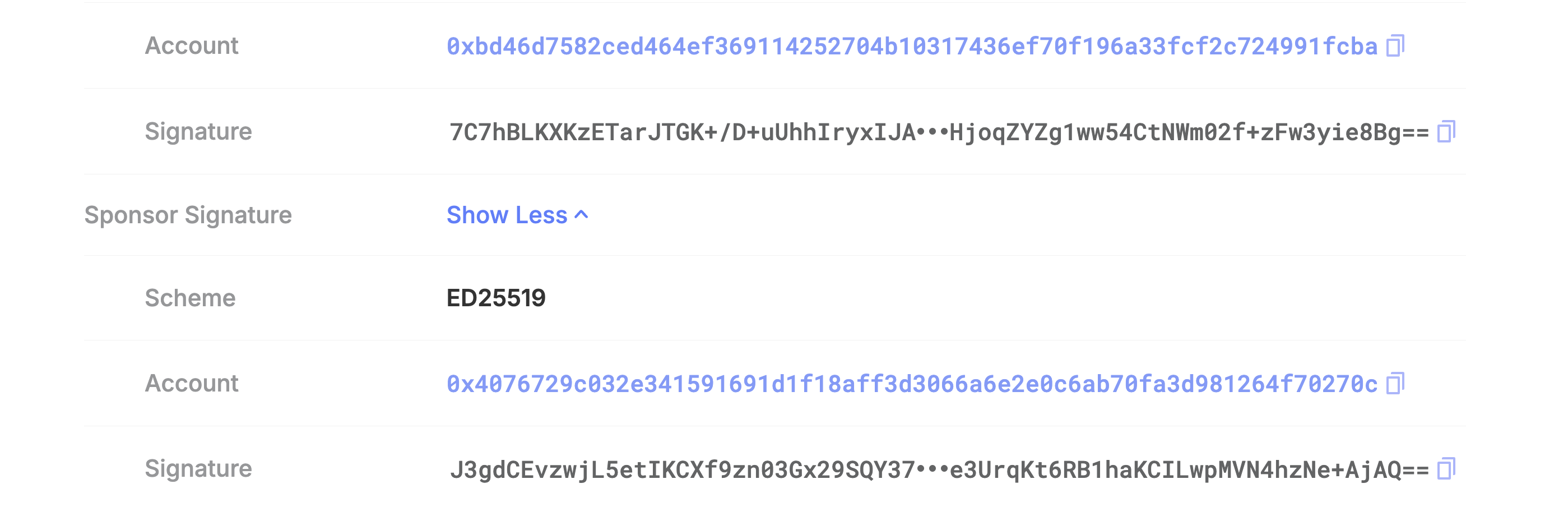
On the explorer you’d be able to see that it’s a sponsored transaction like this:
## Calling Smart Contracts
You’ll use the `moveCall` function inside your transaction to call any Move function on-chain.
First, make sure you have your imports set:
```tsx [index.ts] theme={null}
import { Transaction } from '@mysten/sui/transactions';
```
Here’s how you can call a Move function:
```tsx [index.ts] theme={null}
const tx = new Transaction();
tx.moveCall({
target: '0x2::devnet_nft::mint',
arguments: [
tx.pure.string('NFT Name'),
tx.pure.string('NFT Description'),
tx.pure.string('https://link-to-your-nft-image.com'),
],
});
```
After you add your `moveCall`, you can sign and execute the transaction like before.
## Conclusion
You’ve learned more advanced, development-centric functions you’ll probably use if you’re building on Sui.
Now, you can go ahead and start building more sophisticated full stack apps on Sui
 ## Gas Management on Sui
By default, your transaction uses one of your owned SUI coins as the gas coin. The Sui TypeScript SDK automatically selects a coin not otherwise used in your transaction inputs. However, you can customize gas handling for special cases like sponsored transactions.
### Standard Gas Payments
You can explicitly control the gas settings on a transaction:
Set a custom gas price:
```tsx [index.ts] theme={null}
tx.setGasPrice(gasPrice);
```
Set a custom gas budget:
```tsx [index.ts] theme={null}
tx.setGasBudget(gasBudgetAmount);
```
Specify exactly which coins to use as gas payment:
```tsx [index.ts] theme={null}
tx.setGasPayment([{ objectId, version, digest }]);
```
When splitting coins or transferring tokens, you can reuse the gas coin itself as input, because it can be used **by reference** multiple times safely inside the same transaction block.
If you want to transfer your entire gas coin (send your full balance), you can simply:
```tsx [index.ts] theme={null}
tx.transferObjects([tx.gas], '0xRecipientAddress');
```
This will move your SUI to the recipient and consume the gas object.
### Sponsored Gas (Gasless Transactions)
In a sponsored transaction, another account (the **sponsor**) pays for the gas fees instead of the original sender.
Here’s a typical example of sending a coin to a recipient where the sender pays for gas.
```tsx [index.ts] theme={null}
import { Transaction } from '@mysten/sui/transactions';
import { Ed25519Keypair } from '@mysten/sui/keypairs/ed25519';
import { SuiClient, getFullnodeUrl } from '@mysten/sui/client';
async function userPaysForGas() {
const client = new SuiClient({ url: getFullnodeUrl('testnet') });
// Use your provided main keypair
const keypair = Ed25519Keypair.fromSecretKey(
'suiprivkey1qq9r6rkysny207t5vr7m5025swh7w0wzra9p0553paprhn8zshqsx2rz64r'
);
const tx = new Transaction();
tx.setSender(keypair.getPublicKey().toSuiAddress());
tx.setGasBudget(50_000_000);
tx.setGasPrice(1000);
const [coin] = tx.splitCoins(tx.gas, [1_000_000]);
tx.transferObjects([coin], '0xRecipientAddressHere'); // Change this to your target address
const result = await client.signAndExecuteTransaction({
signer: keypair,
transaction: tx,
});
console.log('User-paid transaction successful with digest:', result.digest);
}
userPaysForGas().catch(console.error);
```
In this case, the sender is automatically paying, but what if you want another account to pay the gas? Here’s how you’d implement that.
```tsx [index.ts] theme={null}
import { Transaction } from '@mysten/sui/transactions';
import { Ed25519Keypair } from '@mysten/sui/keypairs/ed25519';
import { SuiClient, getFullnodeUrl } from '@mysten/sui/client';
async function sponsoredTransaction() {
const client = new SuiClient({ url: getFullnodeUrl('testnet') });
// User's main keypair (your provided key)
const userKeypair = Ed25519Keypair.fromSecretKey(
'suiprivkey1qq9r6rkysny207t5vr7m5025swh7w0wzra9p0553paprhn8zshqsx2rz64r'
);
// Sponsor keypair (your provided key)
const sponsorKeypair = Ed25519Keypair.fromSecretKey(
'suiprivkey1qr3dtpdvecp2usjah06uyw8d8jvx9syqykxlu5x45cymq8lxn7hz2cqpwte'
);
// Build the user's transaction
const tx = new Transaction();
tx.setSender(userKeypair.getPublicKey().toSuiAddress());
const [coin] = tx.splitCoins(tx.gas, [1_000_000]); // Split 0.001 SUI
tx.transferObjects([coin], '0x83ecd81fdd132d4fb4f9ae2608656b000df13c4c3c5b10490d48ee981bc8f433');
// Build KIND bytes (no gas owner yet)
const kindBytes = await tx.build({
client,
onlyTransactionKind: true,
});
// Sponsor modifies transaction
const sponsoredTx = Transaction.fromKind(kindBytes);
sponsoredTx.setSender(userKeypair.getPublicKey().toSuiAddress());
sponsoredTx.setGasOwner(sponsorKeypair.getPublicKey().toSuiAddress());
// Build final transaction bytes
const builtBytes = await sponsoredTx.build({ client });
// ✍️ User signs first
const { signature: userSignature } = await userKeypair.signTransaction(builtBytes);
// ✍️ Sponsor signs
const { signature: sponsorSignature } = await sponsorKeypair.signTransaction(builtBytes);
// 🚀 Execute with both signatures
const result = await client.executeTransactionBlock({
transactionBlock: builtBytes,
signature: [userSignature, sponsorSignature], // ✅ Two signatures required
options: {
showEffects: true,
showEvents: true,
},
});
console.log('✅ Sponsored Transaction Successful!');
console.log('Digest:', result.digest);
}
sponsoredTransaction().catch(console.error);
```
We build the transaction into kind bytes using `tx.build({ onlyTransactionKind: true })` so no gas owner is assigned yet.
Next, we reload the transaction using `Transaction.fromKind(kindBytes)`, set the sender again with `sponsoredTx.setSender()`, and assign the sponsor as the gas payer with `sponsoredTx.setGasOwner()`.
After building the final transaction bytes using `sponsoredTx.build({ client })`, both the user and the sponsor sign the transaction with `signTransaction()`, and finally, we submit the transaction along with both signatures using `client.executeTransactionBlock()`.
On the explorer you’d be able to see that it’s a sponsored transaction like this:
## Gas Management on Sui
By default, your transaction uses one of your owned SUI coins as the gas coin. The Sui TypeScript SDK automatically selects a coin not otherwise used in your transaction inputs. However, you can customize gas handling for special cases like sponsored transactions.
### Standard Gas Payments
You can explicitly control the gas settings on a transaction:
Set a custom gas price:
```tsx [index.ts] theme={null}
tx.setGasPrice(gasPrice);
```
Set a custom gas budget:
```tsx [index.ts] theme={null}
tx.setGasBudget(gasBudgetAmount);
```
Specify exactly which coins to use as gas payment:
```tsx [index.ts] theme={null}
tx.setGasPayment([{ objectId, version, digest }]);
```
When splitting coins or transferring tokens, you can reuse the gas coin itself as input, because it can be used **by reference** multiple times safely inside the same transaction block.
If you want to transfer your entire gas coin (send your full balance), you can simply:
```tsx [index.ts] theme={null}
tx.transferObjects([tx.gas], '0xRecipientAddress');
```
This will move your SUI to the recipient and consume the gas object.
### Sponsored Gas (Gasless Transactions)
In a sponsored transaction, another account (the **sponsor**) pays for the gas fees instead of the original sender.
Here’s a typical example of sending a coin to a recipient where the sender pays for gas.
```tsx [index.ts] theme={null}
import { Transaction } from '@mysten/sui/transactions';
import { Ed25519Keypair } from '@mysten/sui/keypairs/ed25519';
import { SuiClient, getFullnodeUrl } from '@mysten/sui/client';
async function userPaysForGas() {
const client = new SuiClient({ url: getFullnodeUrl('testnet') });
// Use your provided main keypair
const keypair = Ed25519Keypair.fromSecretKey(
'suiprivkey1qq9r6rkysny207t5vr7m5025swh7w0wzra9p0553paprhn8zshqsx2rz64r'
);
const tx = new Transaction();
tx.setSender(keypair.getPublicKey().toSuiAddress());
tx.setGasBudget(50_000_000);
tx.setGasPrice(1000);
const [coin] = tx.splitCoins(tx.gas, [1_000_000]);
tx.transferObjects([coin], '0xRecipientAddressHere'); // Change this to your target address
const result = await client.signAndExecuteTransaction({
signer: keypair,
transaction: tx,
});
console.log('User-paid transaction successful with digest:', result.digest);
}
userPaysForGas().catch(console.error);
```
In this case, the sender is automatically paying, but what if you want another account to pay the gas? Here’s how you’d implement that.
```tsx [index.ts] theme={null}
import { Transaction } from '@mysten/sui/transactions';
import { Ed25519Keypair } from '@mysten/sui/keypairs/ed25519';
import { SuiClient, getFullnodeUrl } from '@mysten/sui/client';
async function sponsoredTransaction() {
const client = new SuiClient({ url: getFullnodeUrl('testnet') });
// User's main keypair (your provided key)
const userKeypair = Ed25519Keypair.fromSecretKey(
'suiprivkey1qq9r6rkysny207t5vr7m5025swh7w0wzra9p0553paprhn8zshqsx2rz64r'
);
// Sponsor keypair (your provided key)
const sponsorKeypair = Ed25519Keypair.fromSecretKey(
'suiprivkey1qr3dtpdvecp2usjah06uyw8d8jvx9syqykxlu5x45cymq8lxn7hz2cqpwte'
);
// Build the user's transaction
const tx = new Transaction();
tx.setSender(userKeypair.getPublicKey().toSuiAddress());
const [coin] = tx.splitCoins(tx.gas, [1_000_000]); // Split 0.001 SUI
tx.transferObjects([coin], '0x83ecd81fdd132d4fb4f9ae2608656b000df13c4c3c5b10490d48ee981bc8f433');
// Build KIND bytes (no gas owner yet)
const kindBytes = await tx.build({
client,
onlyTransactionKind: true,
});
// Sponsor modifies transaction
const sponsoredTx = Transaction.fromKind(kindBytes);
sponsoredTx.setSender(userKeypair.getPublicKey().toSuiAddress());
sponsoredTx.setGasOwner(sponsorKeypair.getPublicKey().toSuiAddress());
// Build final transaction bytes
const builtBytes = await sponsoredTx.build({ client });
// ✍️ User signs first
const { signature: userSignature } = await userKeypair.signTransaction(builtBytes);
// ✍️ Sponsor signs
const { signature: sponsorSignature } = await sponsorKeypair.signTransaction(builtBytes);
// 🚀 Execute with both signatures
const result = await client.executeTransactionBlock({
transactionBlock: builtBytes,
signature: [userSignature, sponsorSignature], // ✅ Two signatures required
options: {
showEffects: true,
showEvents: true,
},
});
console.log('✅ Sponsored Transaction Successful!');
console.log('Digest:', result.digest);
}
sponsoredTransaction().catch(console.error);
```
We build the transaction into kind bytes using `tx.build({ onlyTransactionKind: true })` so no gas owner is assigned yet.
Next, we reload the transaction using `Transaction.fromKind(kindBytes)`, set the sender again with `sponsoredTx.setSender()`, and assign the sponsor as the gas payer with `sponsoredTx.setGasOwner()`.
After building the final transaction bytes using `sponsoredTx.build({ client })`, both the user and the sponsor sign the transaction with `signTransaction()`, and finally, we submit the transaction along with both signatures using `client.executeTransactionBlock()`.
On the explorer you’d be able to see that it’s a sponsored transaction like this:
 ## Calling Smart Contracts
You’ll use the `moveCall` function inside your transaction to call any Move function on-chain.
First, make sure you have your imports set:
```tsx [index.ts] theme={null}
import { Transaction } from '@mysten/sui/transactions';
```
Here’s how you can call a Move function:
```tsx [index.ts] theme={null}
const tx = new Transaction();
tx.moveCall({
target: '0x2::devnet_nft::mint',
arguments: [
tx.pure.string('NFT Name'),
tx.pure.string('NFT Description'),
tx.pure.string('https://link-to-your-nft-image.com'),
],
});
```
After you add your `moveCall`, you can sign and execute the transaction like before.
## Conclusion
You’ve learned more advanced, development-centric functions you’ll probably use if you’re building on Sui.
Now, you can go ahead and start building more sophisticated full stack apps on Sui
## Calling Smart Contracts
You’ll use the `moveCall` function inside your transaction to call any Move function on-chain.
First, make sure you have your imports set:
```tsx [index.ts] theme={null}
import { Transaction } from '@mysten/sui/transactions';
```
Here’s how you can call a Move function:
```tsx [index.ts] theme={null}
const tx = new Transaction();
tx.moveCall({
target: '0x2::devnet_nft::mint',
arguments: [
tx.pure.string('NFT Name'),
tx.pure.string('NFT Description'),
tx.pure.string('https://link-to-your-nft-image.com'),
],
});
```
After you add your `moveCall`, you can sign and execute the transaction like before.
## Conclusion
You’ve learned more advanced, development-centric functions you’ll probably use if you’re building on Sui.
Now, you can go ahead and start building more sophisticated full stack apps on Sui